50 Best Free AI Tools in 2026: Tested & Ranked
Discover 50 of the best free AI tools in 2026 for writing, research, coding, design, video, productivity, and more.
Quick list: 50 free AI tools
# | Tool | Best for |
|---|---|---|
1 | ChatGPT | Writing, ideas, coding, and daily tasks |
2 | Claude | Long documents and thoughtful writing |
3 | Gemini | Google-connected productivity |
4 | Perplexity | Research with source links |
5 | Microsoft Copilot | Everyday work and web assistance |
6 | DeepSeek | Reasoning and coding |
7 | Grok | Fast AI chat and current-topic exploration |
8 | Mistral Le Chat | Fast multilingual AI assistance |
9 | Qwen Chat | Multilingual chat and coding |
10 | HuggingChat | Open-source AI chat |
11 | NotebookLM | Research and document summaries |
12 | Elicit | Research-paper discovery |
13 | Canva Magic Studio | Social and marketing design |
14 | Adobe Firefly | AI image editing |
15 | ChatGPT Images | Image concepts and editing |
16 | Leonardo AI | Game assets and concept art |
17 | Stable Diffusion | Open-source image generation |
18 | Ideogram | Images with readable text |
19 | Krea AI | Real-time visual exploration |
20 | Recraft | Vectors, icons, and graphics |
21 | Fotor | Photo enhancement |
22 | Pixlr | Browser-based photo editing |
23 | PhotoRoom | Product photos |
24 | Background removal | |
25 | Clipdrop | Quick image cleanup |
26 | CapCut | Short-form video editing |
27 | Runway | AI video experiments |
28 | Pika | AI-generated video clips |
29 | Kling AI | Cinematic AI video |
30 | Descript | Audio and video editing |
31 | ElevenLabs | AI voice generation |
32 | Suno | AI music generation |
33 | Udio | AI song creation |
34 | Grammarly | Grammar and writing clarity |
35 | QuillBot | Paraphrasing and summaries |
36 | Gamma | AI presentations |
37 | Notion | Notes and workspace organization |
38 | GitHub Copilot Free | AI coding support |
39 | Windsurf | AI-assisted coding |
40 | Replit | Browser-based coding |
41 | Cursor | AI code editing |
42 | v0 | UI and web-app generation |
43 | Lovable | Prompt-based app building |
44 | Figma | UI and collaborative design |
45 | Uizard | Wireframes and mockups |
46 | Framer | Website and portfolio building |
47 | Zapier | Workflow automation |
48 | Make | Visual automations |
49 | n8n | Open-source workflow automation |
50 | Hugging Face | Open models and AI resources |
1. ChatGPT — best free AI tool overall
ChatGPT is the most versatile general-purpose option. It works well when your task is unclear or involves multiple steps: you can ask it to brainstorm ideas, then turn them into an outline, a draft, a checklist, and a polished final version.
It is especially useful for:
Writing emails, articles, captions, scripts, and resumes
Learning: explanations, examples, quizzes, study plans
Coding: debugging, code explanations, small projects
Planning: travel, workouts, project plans, meeting agendas
Working with uploaded documents, data, and images when those tools are available
Its main advantage is breadth: it can act as a writing assistant, tutor, analyst, planner, and coding partner in one conversation. A good workflow is to provide context, state the intended audience, and ask for a specific format.
Example: “Create a beginner-friendly blog outline about personal finance for Indian college students. Include an SEO title, five sections, and a call to action.”
Free accounts include core chat and may include web search, file/image uploads, data analysis, image generation, and use of GPTs, though those tools have separate limits and availability can change.
Best when you want one tool for almost everything.
2. Claude — best for long documents
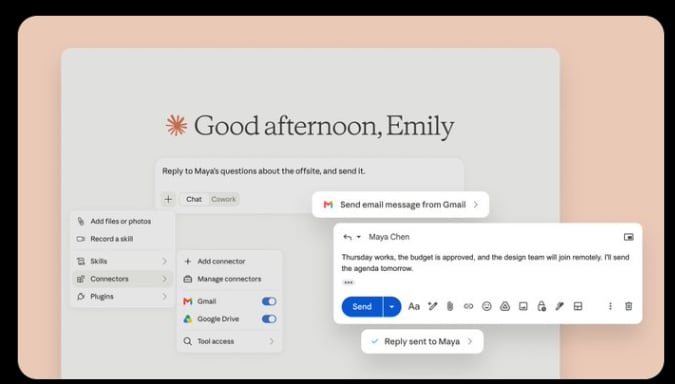
Claude is particularly good at reading and improving long, structured material. It often produces calm, well-organized writing and handles tasks where nuance matters: reports, policies, research notes, specifications, and lengthy drafts.
Use it for:
Summarizing long PDFs, meeting notes, and reports
Editing articles without losing the author’s tone
Finding gaps, contradictions, or unclear sections in a document
Turning research into an executive summary
Drafting careful communications or detailed plans
Instead of asking “summarize this,” ask for the decision you need.
Example: “Review this 20-page proposal. Give me: 1) a 200-word executive summary, 2) the three biggest risks, 3) unclear assumptions, and 4) five questions a client may ask.”
Its limitation is that a polished answer can still contain mistakes. For legal, financial, medical, or factual material, use it to organize and analyze—not as the final authority.
Best when the input is long and the writing needs to remain thoughtful and coherent.
3. Gemini — best for Google users
Gemini is most convenient for people whose work already lives in Gmail, Google Docs, Drive, Calendar, and other Google services. Its advantage is less about isolated chat quality and more about fitting into an existing Google-based workflow.
Useful tasks include:
Drafting and replying to Gmail messages
Converting notes into Google Docs outlines
Creating a plan from a document or spreadsheet
Brainstorming presentation content
Summarizing material stored in Google’s ecosystem
Example: “Turn these meeting notes into a follow-up email, a list of owners and deadlines, and an agenda for next week’s check-in.”
Be careful with permissions and connected data. Only enable access that you are comfortable sharing, and verify generated summaries against the original document.
Best when Google Workspace is already where you do your work.
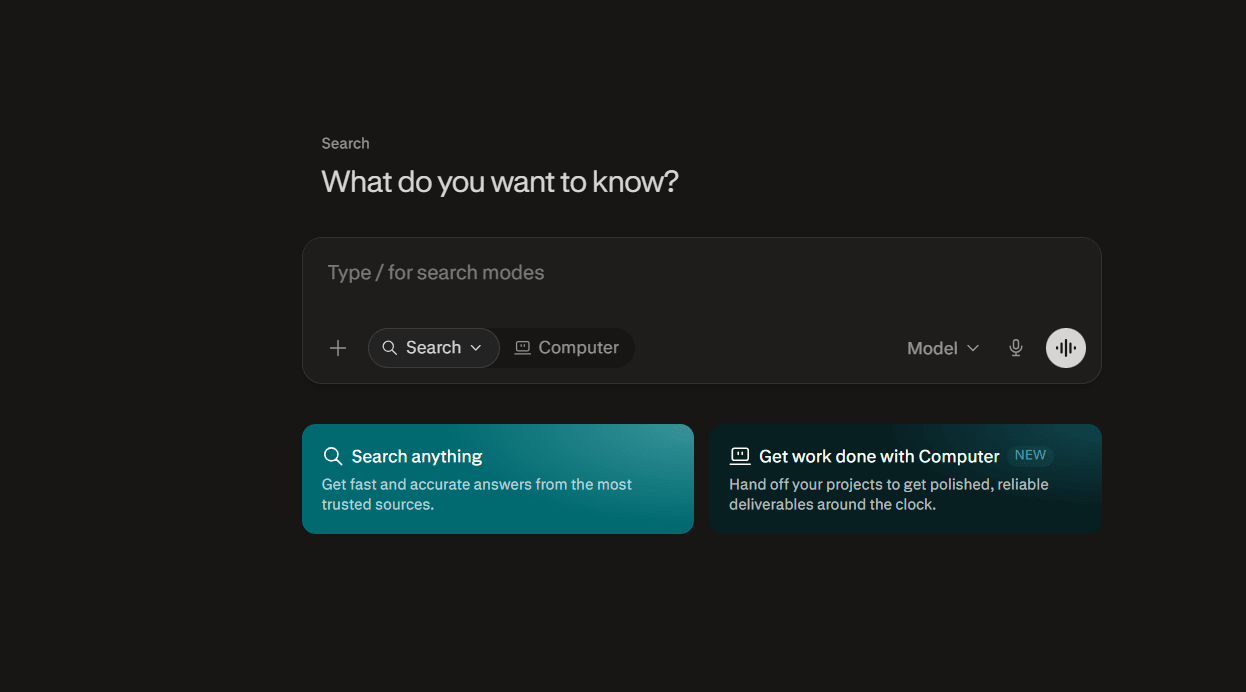
4. Perplexity — best for AI research
Perplexity is best thought of as an AI-assisted search and research tool. Its biggest strength is showing sources alongside its answer, making it easier to trace claims back to websites, reports, and articles.
Use it for:
Fast research briefs
Comparing products, companies, or competitors
Finding recent statistics and news
Building an initial content-research outline
Checking where a claim came from
Example: “Compare the top five email marketing platforms for small businesses in India. Use current pricing pages and cite every price.”
Source links do not automatically make an answer accurate. Open the important sources, check publication dates, and prefer original sources such as official documentation, government reports, or research papers. It is excellent for finding information; you still need judgment to evaluate it.
Best when verifiable sources matter as much as a quick answer.
5. Microsoft Copilot — best for everyday productivity
Microsoft Copilot is most useful for people who spend their day in Windows and Microsoft 365 tools such as Word, Excel, PowerPoint, Outlook, and Teams. It helps reduce routine work: drafting, summarizing, organizing, and transforming content.
Common uses:
Rewriting and summarizing Word documents
Creating a first draft of a PowerPoint deck
Explaining or suggesting formulas in Excel
Drafting Outlook emails
Summarizing meetings and extracting action items
Example: “Turn this quarterly report into a five-slide leadership presentation: results, trends, risks, recommendations, and next actions.”
Its value grows when it has access to your work context, but that also makes privacy and organization important. Review permissions and do not assume an AI-generated Excel result is mathematically correct—validate formulas and totals.
Best when your work revolves around Microsoft tools.
6. DeepSeek — best free tool for reasoning and code
DeepSeek is popular with technical users because it can be useful for logical problem-solving, programming questions, debugging, and step-by-step technical explanations.
Use it for:
Explaining algorithms and data structures
Debugging error messages
Generating starter code
Translating code between languages
Working through math, logic, and technical concepts
Example: “Here is a Python error and the relevant function. Explain the root cause, provide the smallest safe fix, and show two tests that prove it works.”
For code, never paste secrets, API keys, private source code, or customer data into any public AI tool. Also, run and test generated code before trusting it—AI may invent library methods, overlook edge cases, or write insecure examples.
Best when you need a second technical brain for code and reasoning.
7. Grok — best for quick AI conversations
Grok is useful for fast, informal exploration: idea generation, casual explanations, summaries, and question-and-answer conversations. It can be a good option when you want to explore a topic quickly without a highly structured workflow.
Use it for:
Generating hooks, headlines, and social content ideas
Brainstorming product names or campaign angles
Casual explanations of unfamiliar topics
Rapid summaries and exploratory questions
Example: “Give me 20 unusual YouTube video ideas for a beginner productivity channel. Avoid generic ‘morning routine’ ideas.”
The main risk is treating conversational confidence as evidence. Use a dedicated research tool or original sources for claims that matter.
Best when speed and ideation matter more than formal research.
8. Mistral Le Chat — best lightweight AI assistant
Mistral Le Chat is a capable alternative for day-to-day writing, coding, multilingual work, and quick assistance. It may appeal to people who want a simpler, fast chat experience outside the largest AI platforms.
Useful for:
Rewriting text for clarity or tone
Translating and localizing content
Producing short drafts and summaries
Asking coding or productivity questions
Generating variations of product descriptions and messages
Example: “Rewrite this product description in clear English for a non-technical buyer. Keep it under 100 words and remove exaggerated claims.”
It is a sensible backup tool when another free service has reached its limit. Still, test it on your own tasks instead of assuming it will be best for every type of writing or technical work.
Best when you want a fast, straightforward alternative.
9. Qwen Chat — best for multilingual work
Qwen can be especially useful in multilingual settings, including content adaptation, translation, code assistance, document understanding, and everyday chat. It is worth trying when your work crosses languages or markets.
Use it for:
Translating while preserving tone and intent
Creating bilingual content
Explaining a topic in simpler English or another language
Comparing cultural or regional wording
Generating code and technical explanations
Example: “Translate this English landing-page copy into Hindi. Keep product names in English, use natural marketing language, and avoid overly formal Hindi.”
Translation should be reviewed by a fluent speaker when it will be published, used in contracts, or sent to customers. Literal translation is often grammatically correct but culturally awkward.
Best for international teams and multilingual content workflows.
10. HuggingChat — best open-source AI chat
HuggingChat is useful for people interested in open-source AI models and experimentation. It gives access to community-oriented models through a familiar chat interface.
Use it for:
Trying open-source model alternatives
Learning how different models respond
Basic writing, coding, and brainstorming
Exploring privacy-conscious or self-hosted AI directions
Testing prompts before using an open model locally
Example: “Explain this SQL query in plain English, then rewrite it with clearer table aliases.”
The experience can vary substantially by the selected model: quality, speed, factual reliability, language ability, and tool availability may differ. Open-source does not automatically mean private; always read the service’s data and privacy terms.
Best for developers, experimenters, and users interested in open AI ecosystems.
11. NotebookLM — best for working with your documents
NotebookLM is different from a normal chatbot: you give it a defined set of sources—PDFs, notes, web pages, research material—and ask questions based on those sources. That makes it especially useful when you need the AI to stay grounded in your material rather than answer from general knowledge.
Use it to:
Summarize a set of lecture notes or reports
Ask questions across multiple sources
Build a study guide from readings
Extract themes, arguments, timelines, and action items
Turn research into an outline, FAQ, or briefing
Example: “Using only these uploaded reports, identify the five most repeated customer complaints. Quote the source section for each finding.”
Its main strength is source-grounded work. Its limitation is equally important: if the document is incomplete, outdated, or wrong, the answer will reflect that. It is excellent for understanding a collection of information—not for independently verifying it.
12. Elicit — best for academic research
Elicit is designed for finding and organizing academic research. It helps researchers discover relevant papers, compare findings, extract methods and results, and build evidence tables for a literature review.
Use it for:
Finding papers related to a research question
Creating a literature-review starting point
Comparing study populations, methods, and outcomes
Identifying gaps or conflicting findings
Organizing evidence before writing
Example: “Find studies from the last ten years on whether remote work affects employee productivity. Create a table with sample size, country, method, key finding, and limitations.”
Do not treat its summaries as a substitute for reading the studies. Check the original paper, especially its methodology, sample size, funding, publication date, and stated limitations. A paper’s abstract may sound convincing while the full study is weak or narrowly applicable.
13. Canva Magic Studio — best free AI design platform
Canva Magic Studio is ideal for people who need fast, polished visual content without learning professional design software. It combines templates with AI writing, image tools, background removal, resizing, and social-media-focused design features.
Use it for:
Instagram posts, YouTube thumbnails, and ads
Business presentations and flyers
Simple brand graphics
Social-media content calendars
Basic marketing assets for a small business
Example: “Create a square Instagram post promoting a weekend café offer. Use warm colors, a premium but friendly style, and space for the headline ‘Buy 1, Get 1 Free.’”
Canva’s real advantage is not raw image generation—it is turning an idea into an editable, correctly sized design quickly. However, templates can make brands look generic. Customize fonts, colors, imagery, and spacing so the work feels intentional.
14. Adobe Firefly — best for image editing
Adobe Firefly is particularly useful for editing existing images: removing distractions, extending a photo beyond its original frame, replacing objects, adding elements, or trying creative variations.
Use it for:
Removing unwanted objects from photographs
Extending an image for a banner or different crop
Changing backgrounds
Generating replacement objects
Creating text effects and ad variations
Example: “Remove the person in the background, extend the image horizontally for a website header, and preserve the existing lighting.”
Firefly works best when you provide a good starting image and make small, precise edits. For major changes, generate several alternatives and inspect them closely. Check edges, shadows, hands, reflections, logos, and text—the areas where generative edits commonly look artificial.
15. ChatGPT Images — best for quick image concepts
ChatGPT Images is strong when you want to create or revise an image conversationally. You can describe a concept in normal language, request refinements, upload an existing image, or specify a local change such as replacing the background or adding an object.
Useful for:
Concept art and moodboards
Social graphics and simple marketing concepts
Fast visual prototypes
Product-scene ideas
Editing a supplied image through conversation
Example: “Create a clean 16:9 YouTube thumbnail: a surprised student holding a laptop, bold readable text saying ‘AI TOOLS,’ blue and yellow color palette, high contrast.”
The best prompts specify the purpose, subject, composition, style, aspect ratio, lighting, color palette, and any required text. If an image needs a targeted edit, identify the area clearly.
ChatGPT Images can generate and edit images from prompts or uploaded images, supports transparency and different aspect ratios, and is available across ChatGPT tiers; usage limits can still vary by plan. OpenAI’s ChatGPT Images guide
16. Leonardo AI — best for game and concept art
Leonardo AI is popular for stylized, imaginative visuals: fantasy art, character concepts, environments, game assets, and marketing-style illustrations. It is a strong choice when artistic direction matters more than editing a real photograph.
Use it for:
Character sheets and concept art
Fantasy, sci-fi, and game environments
UI/game asset exploration
Book-cover concepts
Stylized promotional illustrations
Example: “Create a character concept sheet for a young cyberpunk mechanic: front, side, and back views; orange utility jacket; neon workshop setting; semi-realistic game-art style.”
Good results usually require iteration. Start broad, choose a direction, then refine composition, lighting, costume, palette, and camera angle. Be clear about commercial-use terms and whether outputs can be used in a final product.
17. Stable Diffusion — best open-source image generator
Stable Diffusion is not one single website—it is an open-source image-generation ecosystem. It offers control that hosted tools often do not: local use, custom models, specialized styles, workflows, image-to-image generation, pose control, and detailed parameter tuning.
Use it for:
Creating repeatable visual workflows
Experimenting with custom models
Generating images locally
Advanced image-to-image edits
Building tools or pipelines around image generation
Example: “Use this product-photo composition as the image reference, retain the pose and layout, but transform the scene into a minimalist studio illustration.”
Its downside is complexity. You may need to install software, manage models, understand settings, and have capable hardware. It is best for users who want control and are willing to learn the workflow, not for someone who only needs a quick social post.
18. Ideogram — best for text in images
Ideogram is especially useful when the image must include readable words. Many image generators struggle with typography; Ideogram is a practical choice for posters, quotes, ads, thumbnails, and branded social graphics.
Use it for:
Posters and event promotions
Ad concepts with headlines
Quote cards
Book-cover or packaging concepts
Thumbnails with large text
Example: “Design a bold, modern poster with the exact headline ‘BUILD BETTER HABITS.’ Use dark navy, off-white, and lime green. Keep the headline large and readable.”
Always proofread the final image. Even tools that handle text better can misspell a word, alter punctuation, or create awkward spacing. For production-quality brand work, create the visual concept with AI and finish the exact text in Canva, Figma, or Adobe software.
19. Krea AI — best for real-time visual ideas
Krea is well suited to rapid exploration. It is useful when you are art-directing an idea and want to see variations quickly rather than writing a long prompt, waiting, and starting over.
Use it for:
Moodboards
Art-direction exploration
Early campaign concepts
Style and color experiments
Fast iterations based on a reference image
Example: “Explore five directions for a sustainable skincare campaign: minimalist clinical, warm botanical, Japanese-inspired, colorful Gen Z, and luxury editorial.”
Krea is most valuable early in the creative process. Use it to discover a visual direction, then move to a more controlled image or design tool for final production.
20. Recraft — best for vectors and icons
Recraft is geared toward design assets that need to remain clean and scalable—such as icons, illustrations, logos-in-progress, interface graphics, and vector-style brand elements.
Use it for:
Icon sets
Landing-page illustrations
App and dashboard graphics
Brand motifs
Editable vector-like assets
Example: “Create a consistent set of six minimal line icons for finance: wallet, chart, receipt, savings, card, and calculator. Use rounded corners and a two-color blue palette.”
The key benefit is consistency. Tell it the visual system first: stroke width, corner radius, color palette, fill style, and level of detail. Avoid relying on any AI generator alone for a final trademark or logo; check originality, refine manually, and test the design at small sizes.
21. Fotor — best for photo enhancement
Fotor is for quick, practical photo improvement rather than advanced design work. It helps clean up images, improve brightness and clarity, remove backgrounds, apply retouching, and create ready-to-share visuals.
Use it for:
Improving product photos
Basic portrait enhancement
Cleaning up low-quality images
Creating quick promotional visuals
Social-media image adjustments
Example: “Enhance this food photo for Instagram: brighten it slightly, improve detail, retain natural colors, and keep the meal looking realistic.”
Do not overprocess. Excessive sharpening, skin smoothing, saturation, or AI enhancement can make photos look fake. Compare the output to the original and preserve the visual truth of products, people, and real places.
22. Pixlr — best browser photo editor
Pixlr is useful when you need a lightweight browser-based editor. It is a convenient option for cropping, resizing, adding text, cleaning up images, and making quick adjustments without installing Photoshop or another desktop program.
Use it for:
Fast crops and aspect-ratio changes
Adding titles or labels
Basic retouching
Background cleanup
Exporting simple web graphics
Example: “Resize this image into 1:1, 4:5, and 16:9 versions, keeping the subject centered and leaving room for a headline.”
It is best for fast execution, not elaborate creative pipelines. Use it after generating or sourcing a visual to finish the practical details: correct size, compression, text placement, and platform-specific formatting.
23. PhotoRoom — best for ecommerce product images
PhotoRoom is tailored to product photography. It removes backgrounds, creates clean product scenes, and helps sellers turn ordinary phone photos into catalog or advertising visuals.
Use it for:
Marketplace listings
Shopify product pages
Product ads
Before-and-after visuals
Consistent catalog images
Example: “Remove the background, place this water bottle on a clean pale-blue studio backdrop, add a natural soft shadow, and retain the exact product shape and label.”
Product accuracy matters. AI should not alter the color, packaging, logo, size, texture, included accessories, or other details customers rely on. Use AI to improve presentation, not to misrepresent what is being sold.
24. remove.bg — best for removing backgrounds
remove.bg is simple by design: it separates a foreground subject from the background quickly. It is useful when you need a transparent image for a product listing, profile picture, presentation, or design composition.
Use it for:
Product cutouts
Profile images
Logo placement
Presentation assets
Layered designs in Canva or PowerPoint
Example: “Remove the background while retaining the hair, glasses, and edges of the person’s jacket. Export with transparency.”
Inspect fine edges carefully, especially hair, fur, transparent objects, thin straps, and shadows. A transparent cutout is often only the first step; you may still need to add a realistic background or shadow.
25. Clipdrop — best for image cleanup
Clipdrop is useful for short, targeted image fixes. It can help remove objects, clean up backgrounds, improve resolution, relight a subject, or quickly produce an alternative version of an image.
Use it for:
Removing unwanted objects
Cleaning ecommerce images
Improving image resolution
Relighting portraits or product shots
Creating cleaner assets for content
Example: “Remove the power cable and coffee cup from the desk, but preserve the monitor, desk texture, and natural shadow.”
It is a time-saving finishing tool. Its output can look convincing at a glance but may contain artifacts under close inspection. Zoom in before publishing, especially for paid ads, print, and product pages.
26. CapCut — best free AI video editor
CapCut is a strong choice for short-form video creation. It combines standard video editing with templates, auto-captions, quick effects, social-media aspect ratios, and editing features designed for TikTok, Reels, and Shorts.
Use it for:
Cutting short social videos
Creating auto-captioned clips
Turning long videos into short highlights
Adding music, effects, and transitions
Editing tutorials and talking-head videos
Example: “Turn this 10-minute interview into three vertical 30-second clips. Add accurate captions, remove pauses, start with the strongest statement, and leave room for subtitles.”
The biggest improvement you can make is not an AI effect—it is a strong first two seconds. Use a clear hook, trim dead space, keep captions readable, and make each video about one idea.
27. Runway — best for AI video experiments
Runway is better suited to experimental video generation and creative post-production. It can help with visual effects, background changes, image-to-video tests, and artistic motion concepts.
Use it for:
Turning still concepts into motion tests
Generating visual effects ideas
Creating short campaign prototypes
Background replacement
Storyboard-to-video exploration
Example: “Animate this still image into a five-second cinematic shot: slow camera push-in, wind moving the fabric, warm sunset light, realistic motion.”
AI video is best used for prototypes, B-roll ideas, and imaginative concepts. It can struggle with continuity, hands, object permanence, and controlled motion across several shots. For a finished story, plan each short shot separately and edit the results together.
28. Pika — best for short AI video clips
Pika is useful for short, playful, high-impact animated clips generated from text or images. It fits social content, product concept tests, motion experiments, and visual jokes.
Use it for:
Short looping clips
Animated social posts
Image-to-video concepts
Product teasers
Creative transitions
Example: “Animate this sneaker image for a six-second ad: the shoe rotates slowly, colored powder bursts behind it, studio lighting, vertical format.”
Keep prompts focused on one clear action. A request for multiple characters, complicated choreography, camera changes, and several events usually leads to less reliable output.
29. Kling AI — best for cinematic video concepts
Kling is often used for visually ambitious, cinematic AI-video concepts. It is useful for scenes that need atmosphere, realism, camera motion, or a polished advertising feel.
Use it for:
Storyboards and pitch visuals
Cinematic ad concepts
Fashion or lifestyle motion tests
Music-video ideas
Visual storytelling experiments
Example: “A cinematic wide shot of a cyclist riding through misty mountain roads at dawn. Slow drone tracking shot, natural light, realistic motion, 16:9.”
Treat generated video as a creative draft. It can establish a tone, composition, and direction before you invest in a live shoot, animation, or professional post-production.
30. Descript — best for editing podcasts and talking-head videos
Descript makes spoken-word editing much easier because it lets you edit audio and video through a transcript. Delete a sentence in the text and the corresponding section is removed from the recording.
Use it for:
Editing podcasts
Cleaning interview recordings
Removing filler words and pauses
Producing transcripts and captions
Pulling short clips from longer interviews
Editing YouTube talking-head videos
Example: “Remove repeated ideas and filler words, keep the speaker’s natural cadence, create a clean 12-minute version, and extract three short clips with captions.”
Transcript-based editing is a huge time-saver, but it should not replace human judgment. Review every automated cut: removing a pause may make speech feel rushed, and deleting filler words can sometimes make the speaker sound unnatural.
31. ElevenLabs — best for AI voiceovers
ElevenLabs is best known for realistic synthetic voices. It is useful when you need narration but do not want to record your own voice, hire a voice actor, or set up audio equipment.
Use it for:
YouTube narration and explainers
Product demos and app walkthroughs
Audiobook prototypes
Training videos
Multilingual voiceovers
Example: “Create a warm, confident 45-second narration for a productivity-app demo. Speak clearly, at a medium pace, with a friendly professional tone.”
The quality of the script matters as much as the voice. Write short sentences, use natural punctuation, spell names phonetically if needed, and listen for awkward emphasis. Do not clone or imitate someone’s voice without clear permission.
32. Suno — best for AI music
Suno helps create song ideas, instrumentals, and complete AI-generated tracks from a text prompt. It is good for fast creative exploration when you need a musical direction rather than a carefully produced commercial release.
Use it for:
Background music concepts
Jingles and intro ideas
Mood-based tracks for videos
Lyric and song-structure experimentation
Creative demos
Example: “Create an upbeat 20-second instrumental for a tech-product launch: modern electronic beat, optimistic, clean, no vocals.”
AI music can be highly useful for mockups and social content, but check the platform’s current licensing terms before using tracks commercially. Avoid prompts that ask for an exact living artist’s style; describe the musical qualities you want instead.
33. Udio — best for AI song creation
Udio is another AI music platform focused on generating songs and exploring musical ideas. It is useful for people who want to experiment with lyrics, genres, arrangements, vocal moods, and song sections.
Use it for:
Songwriting inspiration
Short original song concepts
Genre exploration
Background tracks with a specific emotional tone
Video and social-content music tests
Example: “Create a mellow indie-pop song about starting over after failure. Female lead vocal, reflective verses, hopeful chorus, acoustic guitar and subtle synth.”
Think of it as a co-writing and prototyping tool. Generated music may need editing, re-arrangement, or replacement if you need precise timing, clean lyrics, a consistent voice, or an original commercial identity.
34. Grammarly — best for grammar and tone
Grammarly is a practical writing assistant for improving work that already exists. It is particularly valuable for emails, reports, proposals, and everyday professional writing where clarity matters more than generating text from scratch.
Use it for:
Correcting grammar, spelling, and punctuation
Making writing more concise
Adjusting formality and tone
Improving readability
Catching small errors before sending a message
Example: “Make this email concise and confident, but not aggressive. Keep the request clear and preserve the deadline.”
Do not accept every suggestion automatically. A grammar tool may remove useful personality, simplify technical language too much, or misunderstand deliberate style choices. Review changes, especially in legal, academic, or brand-critical writing.
35. QuillBot — best for rewriting and summaries
QuillBot is useful for paraphrasing, simplifying, shortening, or restructuring text. It can help writers get unstuck, improve sentence flow, or make complex writing more accessible.
Use it for:
Rewriting a paragraph in simpler language
Shortening a long passage
Producing alternative wording
Summarizing notes
Helping non-native English writers polish drafts
Example: “Rewrite this paragraph for a general audience at an eighth-grade reading level. Keep the technical meaning and reduce it to 80 words.”
Use paraphrasing ethically. It should help you understand and improve your own writing, not disguise copied work or avoid citation requirements. For academic work, cite your sources and follow your institution’s AI-use policy.
36. Gamma — best for AI presentations
Gamma can turn a prompt, outline, or source text into a presentation-style document quickly. It is useful when you need an initial deck or visual narrative without spending hours arranging every slide manually.
Use it for:
Startup and sales-deck first drafts
Internal reports
Training presentations
Project proposals
Simple visual documents and web-style pages
Example: “Create a 10-slide investor-pitch draft for a sustainable packaging startup. Include problem, solution, market, product, business model, traction, competition, team, funding ask, and next steps.”
Its output is a starting point, not a final presentation. Strong decks need a clear audience, accurate figures, a focused message, and deliberate visual hierarchy. Replace generic images, verify data, and cut slides that do not advance the story.
37. Notion — best for organizing work
Notion is a flexible workspace for notes, documents, databases, task tracking, content calendars, and team knowledge. Its AI features can help summarize pages, draft content, and turn notes into actions.
Use it for:
A personal knowledge base
Content calendars
Project plans and task trackers
Meeting notes
Team wikis and process documentation
Example: “Create a content-planning database with fields for topic, target keyword, audience, status, owner, deadline, draft link, and publishing date.”
Notion works best when the structure is simple and consistently maintained. Avoid building an overly complex system before you know how you will use it. Start with a few useful databases and templates, then add automation only when a repeated process proves necessary.
38. GitHub Copilot Free — best for coding suggestions
GitHub Copilot helps developers write and understand code within supported development environments. It can suggest functions, explain unfamiliar code, propose tests, and help with common programming tasks.
Use it for:
Boilerplate code
Function suggestions
Unit-test drafts
Explaining an error or code block
Learning a new language or framework
Example: “Write unit tests for this function. Cover valid input, empty input, invalid input, and the boundary cases.”
Copilot is most helpful when you treat it as an assistant, not an autopilot. Review its code for correctness, security, performance, licensing concerns, and fit with your project’s conventions. Never paste secrets, private keys, or sensitive customer data into prompts.
39. Windsurf — best AI coding environment
Windsurf is an AI-assisted development environment intended to help developers understand and change software projects more quickly. It is especially useful when work involves multiple files or you need help navigating an unfamiliar codebase.
Use it for:
Understanding a repository
Planning a multi-file change
Refactoring repetitive code
Debugging with project context
Generating tests and documentation
Example: “Trace the login flow in this codebase. Explain which files handle authentication, then propose the smallest change needed to add an account-lockout rule.”
The best practice is to ask the tool to explain and plan before asking it to edit. Then review the diff, run the tests, and inspect behavior yourself. Broad autonomous changes can introduce subtle regressions.
40. Replit — best browser-based coding platform
Replit makes it easy to write, run, share, and deploy code from a browser. It is approachable for beginners and convenient for prototypes because the environment, editor, and runtime are integrated.
Use it for:
Learning programming
Small web apps
Classroom projects
Quick prototypes
Sharing a runnable demo
Example: “Build a simple expense tracker with HTML, CSS, and JavaScript. Include add, delete, category, total-spend calculation, and local browser storage.”
It is a good way to learn by building. For production systems, however, you still need normal engineering discipline: version control, backups, environment variables, testing, access controls, and a clear deployment plan.
41. Cursor — best for AI code editing
Cursor is useful for developers working inside existing codebases. It can help answer questions about a project, edit selected code, generate files, and assist with refactoring and debugging.
Use it for:
Explaining legacy code
Making targeted code changes
Refactoring a component
Writing tests
Debugging stack traces
Example: “Refactor this API client to centralize error handling. Preserve its public interface, add tests for network errors, and explain every changed file.”
Give narrow instructions. “Fix the app” is too vague; specify the observed bug, expected behavior, affected area, and test criteria. Always review generated changes and use Git so every change is easy to inspect and reverse.
42. v0 — best for UI generation
v0 is useful for rapidly turning a description into a website or application interface. It helps frontend developers and product teams explore layouts, components, and responsive UI ideas.
Use it for:
Landing-page concepts
Dashboard interfaces
SaaS product screens
Form flows
Component prototypes
Example: “Create a responsive analytics dashboard for a small ecommerce store. Include revenue cards, a sales chart, top products, recent orders, filters, dark mode, and accessible labels.”
Generated UI can look polished while missing real product thinking. Check responsive behavior, accessibility, empty states, loading states, error states, navigation, and whether the interface actually supports the user’s task.
43. Lovable — best for prompt-based app building
Lovable is aimed at turning product ideas into simple web apps and prototypes through natural-language instructions. It is useful for founders and non-specialists who want to test an idea before committing to full custom development.
Use it for:
MVP prototypes
Internal tools
Simple client portals
CRUD apps
Startup concept validation
Example: “Build a simple appointment-booking app for a fitness coach. Include client sign-up, available time slots, booking confirmation, and an admin view of upcoming sessions.”
It can speed up the first 60% of a prototype. The final 40%—security, user permissions, payments, edge cases, data ownership, reliability, and maintainability—still requires careful design and often a developer’s review.
44. Figma — best for UI collaboration
Figma is a central tool for interface design and team collaboration. Product designers use it to create screens, components, prototypes, design systems, and developer handoffs in a shared workspace. Its AI features can speed up early exploration and repetitive design tasks. Figma AI
Use it for:
Wireframes and polished UI designs
Clickable prototypes
Design systems
Team feedback and comments
Developer handoff
Example: “Create a mobile onboarding flow for a language-learning app: welcome screen, goal selection, daily target, notification permission, and first lesson.”
Figma is not merely a place to make attractive screens. Its real value is shared decision-making: reusable components, consistent styles, clear feedback, and a maintained source of truth between product, design, and engineering teams.
45. Uizard — best for quick wireframes
Uizard is helpful for quickly converting a rough idea, screenshot, sketch, or written prompt into editable interface mockups. It is useful early in product development, when speed matters more than pixel-perfect design.
Use it for:
Low-fidelity wireframes
Early product flows
Converting sketches into digital mockups
Competitive UI exploration
Founder or stakeholder demos
Example: “Turn this hand-drawn booking-flow sketch into a mobile wireframe with screens for search, date selection, confirmation, and booking history.”
Use Uizard to clarify the product flow, then refine the design in Figma or another detailed design tool. A wireframe should answer “Can a user complete this task?” before you spend time on polished visuals.
46. Framer — best for portfolios and landing pages
Framer is suited to designers and teams building visually polished, responsive websites—especially portfolios, marketing pages, and startup landing pages. It is useful when design quality, speed, and animation matter.
Use it for:
Personal portfolios
Agency sites
Product landing pages
Waitlists and launch pages
Marketing campaigns
Example: “Create a responsive landing page for a freelance UX designer. Include a bold hero, selected work, services, testimonials, process, and contact form.”
A beautiful site still needs strong fundamentals: readable copy, clear calls to action, good mobile layout, fast-loading images, accessible contrast, analytics, and SEO basics. Do not let animation hide a weak message.
47. Zapier — best for beginner automation
Zapier connects apps through trigger-and-action workflows. It is useful when a repeated manual task follows a predictable pattern—for example, a form submission always creating a lead, sending an email, and notifying a team.
Use it for:
Form-to-CRM lead capture
Email notifications
Calendar reminders
Social-post scheduling
Spreadsheet updates
Basic approval workflows
Example: “When a Typeform lead submits a form, create a contact in the CRM, add a row to Google Sheets, notify Slack, and send a thank-you email.”
Start with one valuable, simple automation. Add error notifications and test with dummy data. Automations can silently create duplicate records or send messages to the wrong person if conditions and field mappings are not carefully checked.
48. Make — best for visual workflow automation
Make provides a visual approach to automation. It is generally better suited than a basic trigger-action tool when your workflow needs branching, data transformation, routers, filters, loops, and several connected steps.
Use it for:
Multi-step operational workflows
Complex app integrations
Data transformation between systems
Conditional notifications
Lead routing and enrichment
Example: “When a new lead enters the CRM, check its country and company size. Route enterprise leads to Salesforce and Slack, place smaller leads in HubSpot, and create a follow-up task for each.”
The visual workflow makes complex logic easier to see, but you still need to handle failures. Design for missing data, duplicate events, rate limits, retries, and alerts. Document the workflow so someone else can maintain it.
49. n8n — best open-source automation tool
n8n is an automation platform that gives technical teams more flexibility, especially when self-hosting, custom code, internal systems, or data control are important.
Use it for:
Self-hosted workflows
Internal API integrations
Custom data-processing pipelines
AI agent workflows
Automations involving private systems
Example: “Every night, pull support tickets from our internal API, classify them by topic, flag urgent issues, add metrics to the database, and send a daily summary to the support manager.”
n8n gives you control, but it also gives you responsibility. If you self-host, you need to manage security, credentials, backups, upgrades, access permissions, monitoring, and reliability.
50. Hugging Face — best free AI resource hub
Hugging Face is a major platform for discovering and using open-source AI models, datasets, demos, and developer tools. It is less like a single chatbot and more like an ecosystem for learning, experimenting, and building with AI.
Use it for:
Finding open-source models
Trying live AI demos
Downloading datasets
Reading model documentation
Building and sharing AI applications
Exploring models for text, image, audio, video, and more
Example: “Find an open-source model that can summarize English and Hindi documents, compare its license, hardware requirements, benchmarks, and example usage before selecting it.”
Pay attention to model cards and licenses. Check what the model was trained for, its known limitations, permitted use, data requirements, hardware needs, and bias or safety notes. A popular model is not automatically suitable for your product or data.
How to choose the best free AI tool
Choose tools based on the result you need:
For writing: ChatGPT, Claude, Gemini, Grammarly, and QuillBot
For research: Perplexity, NotebookLM, Elicit, and Hugging Face
For design: Canva, Adobe Firefly, Recraft, Figma, and Krea
For images: ChatGPT Images, Leonardo AI, Ideogram, and Stable Diffusion
For video: CapCut, Runway, Pika, Kling AI, and Descript
For coding: GitHub Copilot, Cursor, Replit, Windsurf, and v0
For automation: Zapier, Make, and n8n
Final
The best free AI tools in 2026 are not necessarily the ones with the most features. They are the tools that help you complete meaningful work faster while maintaining quality and control.
Start with two or three tools that match your daily workflow. Learn them well, protect sensitive information, verify important outputs, and expand your toolkit only when you have a real need.
For more AI platforms across writing, design, video, development, research, and marketing, explore AiWedia’s AI tools directory.